
How to save the Project's instrument as a PDF?
16 September 2026
Topics
Instruments (Forms)
Learn how to export the Project's instruments(forms) as a PDF.
You can generate a copy of the REDCap Project's Instrument / Form for export as a PDF file.
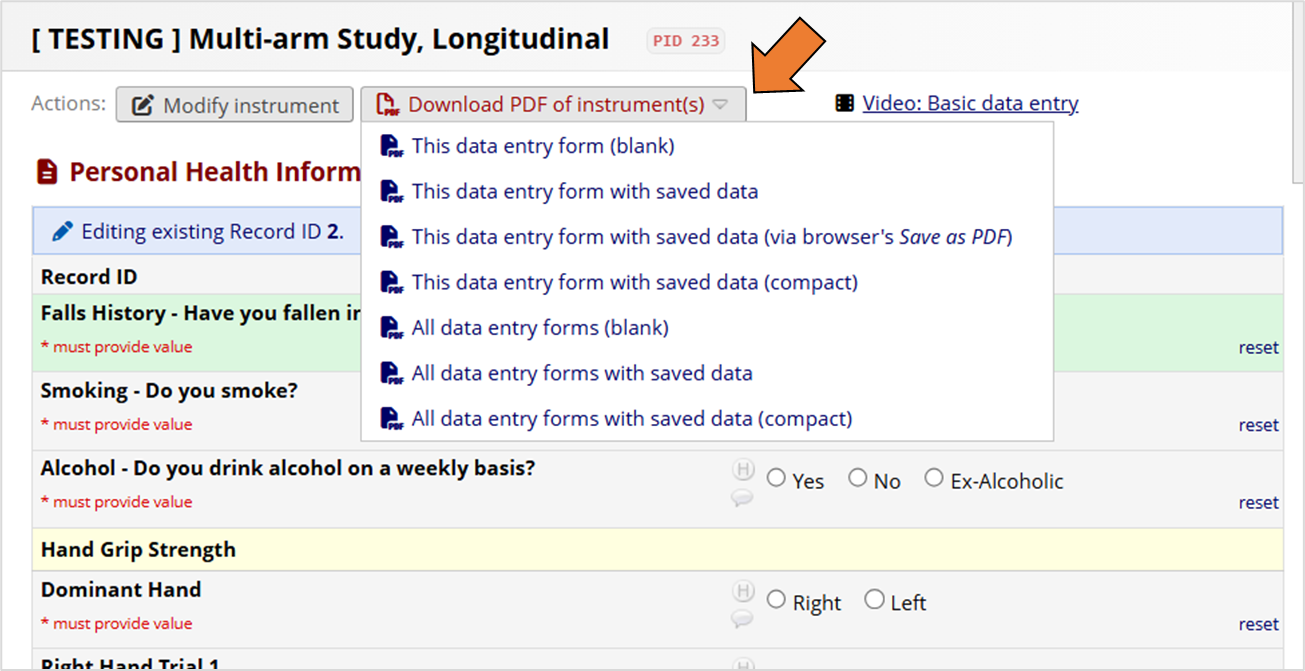
Here is the step-by-step:
Go to the 'Record Status Dashboard'
Open your REDCap project and click on 'Record Status Dashboard' on the left-hand menu under 'Data Collection'.
Find the Record and open the Instrument
Locate the Record containing the instrument/form which you want to print. Open the Instrument.
Open the PDF Download menu
Once the data entry form opens, look at the top of the page and click on the 'Download PDF of instrument(s)' button.
Select the PDF option you want
A dropdown list will appear allowing you to choose whether to download a single instrument or all instruments, and whether to include the saved data for that record or leave it blank. Select the option which works for your purpose.
Print or Save
Open the generated PDF file on your computer and send it to your printer or save it locally.
Prerequisites: You must have been assigned the appropriate project user-rights or role before you can access the Form and Data.
HANDLING EXPORTED DATA
All REDCap Users are responsible for taking all necessary measures to protect the exported REDCap Project data from unauthorized access as required by all applicable legislation, regulations and policies.
The exported REDCap dataset file must be password protected and securely stored on NHG-approved computers and data storage devices/facilities.